Cause
After investigation, it was identified that Ubuntu 21.10 and Fedora 35 began using glibc 2.34 and higher versions. In glibc 2.34, a new system call named clone3 was introduced. Normally, Docker intercepts all system calls in containers and determines how to handle them. If Docker lacks specific policies for a particular system call, its default policy returns a “Permission Denied” error to the container. However, when glibc receives this error, it does NOT fallback to alternative methods. It would only attempt fallback procedures if the response indicated “This system call is unavailable.”
Solutions
Solution 1
Add the following parameter when running the container to bypass Docker’s system call restrictions:
|
|
Important caveats:
- This compromises container security.
- This parameter cannot be used during image builds. Refer to Solution 2 for alternatives.
Solution 2
Upgrade Docker to version 20.10.8 or higher (>20.10.8).
Production environment considerations:
- Upgrading Docker versions in production may be challenging.
- When building images, avoid using Ubuntu 21.10, Fedora 35, or newer as base images, and verify if derived images are affected.
- Most official images are based on Debian - confirm Debian-based image compatibility to ensure they aren’t impacted by this issue.
Solution 3
Upgrade runc.
https://github.com/opencontainers/runc/releases/
Check the runc version before upgrading using docker version:
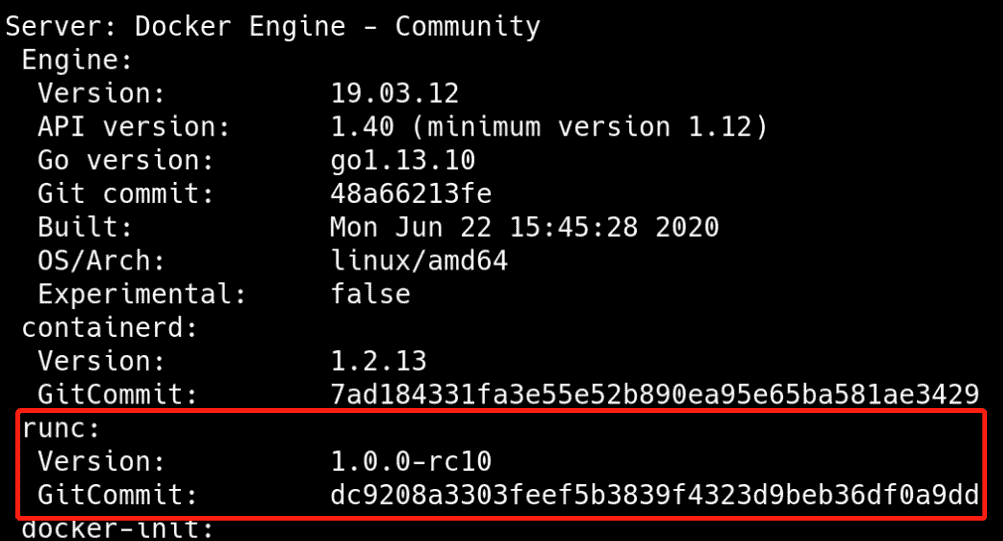
1. Select version 1.0.0-rc95 and download runc.amd64
2. Upload the file to the server, rename it, and grant permissions
|
|
3. Back up the existing runc
|
|
4. Stop Docker
|
|
5. Replace with the new runc version
|
|
6. Start Docker
|
|
7. Verify if runc was upgraded successfully
|
|