
NVIDIA GPU Driver Persistence Configuration and Troubleshooting
Overview
This article documents a monitoring anomaly issue caused by GPU driver non-persistent mode, and introduces the principles and configuration methods of NVIDIA GPU driver persistence.
Problem Symptoms
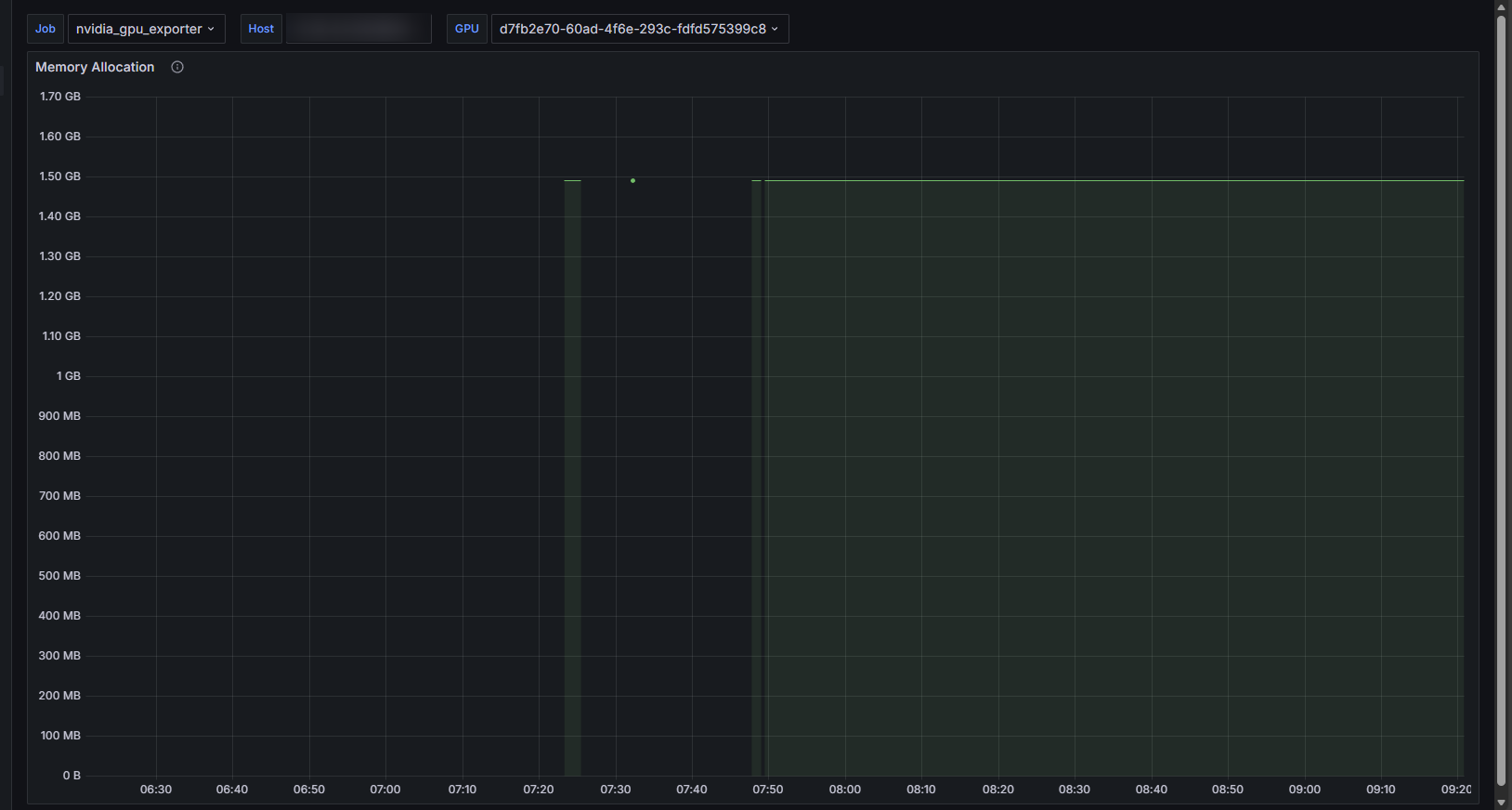
During algorithm program stress testing, the Grafana monitoring dashboard revealed that the Nvidia Exporter service was running unstably, showing intermittent behavior:
Initial Investigation
Ruling Out Prometheus Scrape Issues
Manually executing the curl http://localhost:9835/metrics command on the target GPU server resulted in a timeout, confirming that the issue was with the Exporter service itself.
Adjusting Log Level
The Nvidia Exporter log level was adjusted to debug, but no obvious error messages were found.
Root Cause Identification
Manually executing the query command used internally by Nvidia Exporter:
|
|
Key Finding: The command execution time fluctuated between 3-10 seconds, which was clearly abnormal. The test environment had 8 GPUs in total, with 2 being occupied by the algorithm program and the remaining 6 idle.
After reviewing the NVIDIA official documentation on GPU driver persistence, we attempted to enable persistent mode.
Solution
Temporarily Enable Persistent Mode
Execute the following command to immediately enable GPU driver persistence:
|
|
After executing the query command again, the response time dropped to milliseconds, problem solved.
Configure Automatic Startup
To ensure the persistence configuration takes effect after system reboot, a systemd service needs to be configured:
1. Create Service Configuration File
|
|
2. Add the Following Content
|
|
3. Enable and Start the Service
|
|
Verification
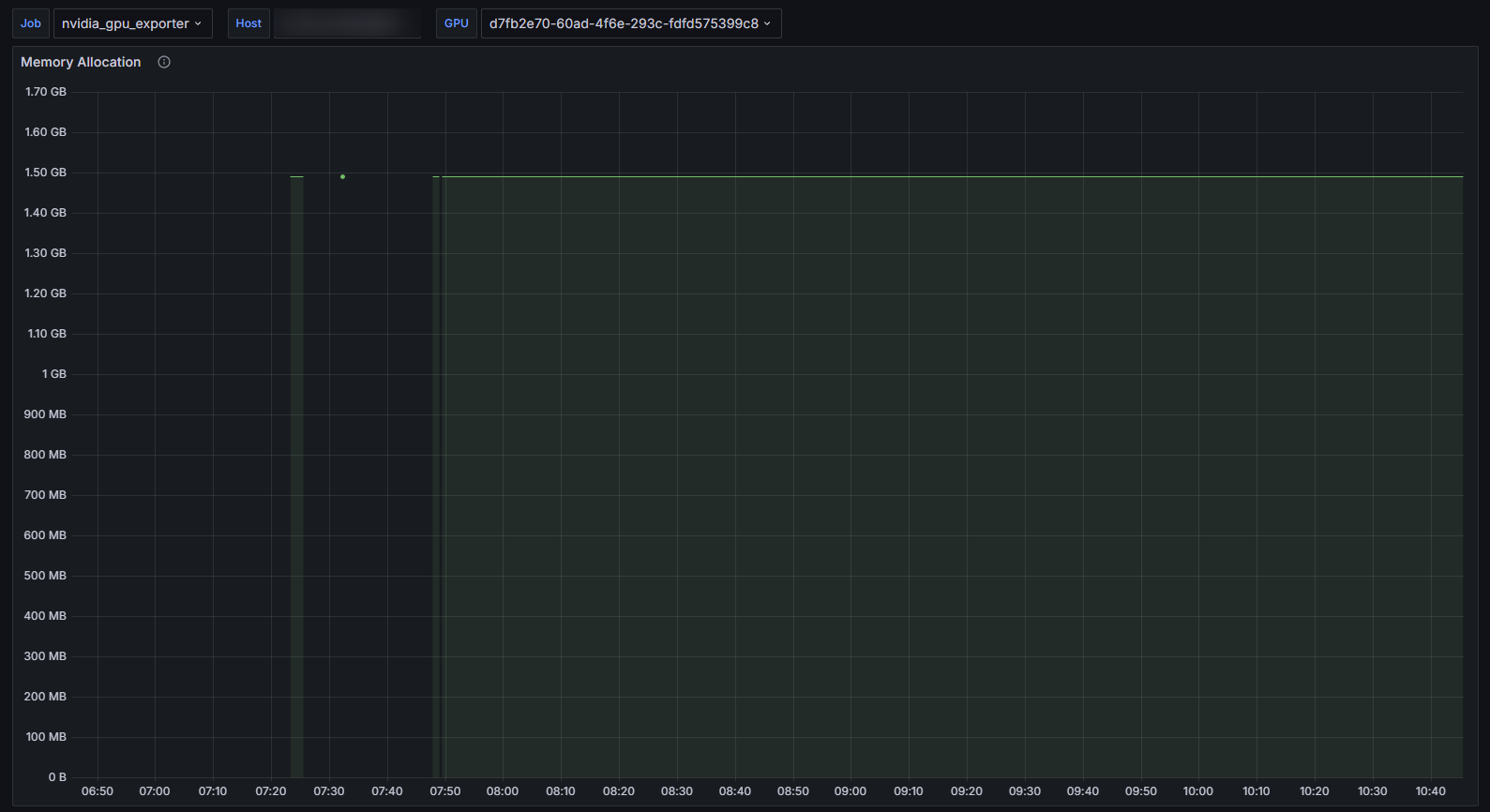
After configuration, the monitoring system returned to normal, with stable GPU usage collection:
Technical Principles
GPU Driver Loading Mechanism
NVIDIA GPU interaction depends on the kernel mode driver, which operates in two modes:
- Persistent Mode: The driver remains continuously active
- On-Demand Loading Mode: The driver loads only when a program uses the GPU
Driver Lifecycle
Initialization Phase
When the first program attempts to interact with the GPU, if the kernel driver is not running, the system triggers driver loading and GPU device initialization.
De-initialization Phase
After all GPU client programs exit, the driver executes GPU de-initialization operations, essentially “shutting down” the GPU device.
Impact on Users
Application Startup Delay
When GPU initialization is triggered for the first time, operations such as ECC memory checks cause a delay of 1-3 seconds. If the GPU is already initialized, there is no such delay.
Driver State Loss
After GPU de-initialization, non-persistent state information (such as power limits, clock frequency configurations, etc.) is lost and restored to default values upon the next initialization. Enabling persistent mode avoids this issue.
Platform Differences
Windows Platform
On Windows systems, the kernel driver loads at system startup and remains running until system shutdown. Therefore, Windows users typically do not need to be concerned about driver persistence issues.
Note: Driver reload events (such as TDR triggers or driver updates) will cause non-persistent state resets.
Linux Platform
Linux system behavior depends on the runtime environment:
Graphical Environment
If the X Server runs on the target GPU, the kernel driver typically remains active from boot to shutdown, maintained by the X process connection.
Headless Server Environment
On servers without a graphical interface (Headless Server), if there is no long-running GPU client, each application start and stop will trigger driver loading and unloading. This is extremely common in High-Performance Computing (HPC) and Data Center environments, which was the root cause of this incident.
Best Practice Recommendations
- Strongly recommended for production environments to enable GPU driver persistence, especially in headless server scenarios
- Use
systemdservice to ensure persistence configuration automatically takes effect after system reboot - The monitoring system should be thoroughly tested after enabling persistence to verify the stability of metric collection
- Regularly check the
nvidia-persistencedservice status to ensure it is running properly