Introduction
In a previous post, I explained how to configure Redroid in Docker and obtain root access with Magisk. As some open-source modules raised their minimum Magisk version requirements, this article adopts ayasa520/redroid-script to rebuild the image and update the root approach. It also introduces AutoJS to handle autostart and automation-click scenarios, documenting the complete flow from building and composing to troubleshooting.
Compliance & Risk Notice
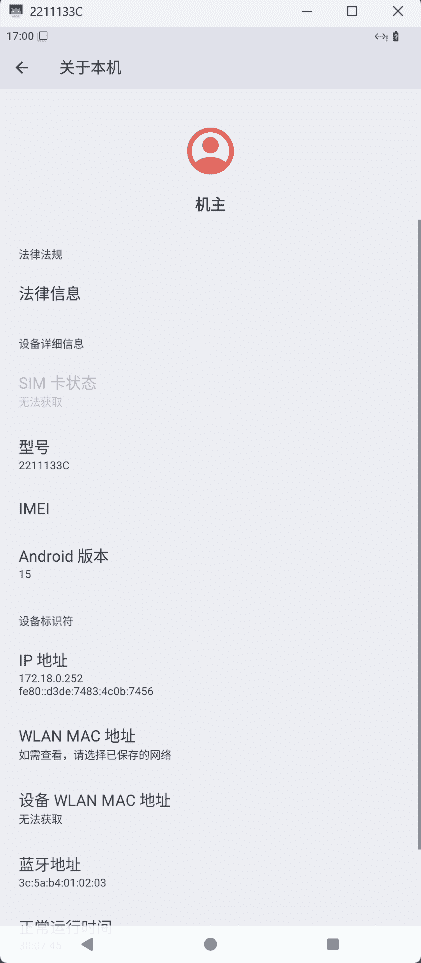
This article is for learning and research only. Operations involving certificates, root, system modules, and network redirection may pose compliance and security risks. Ensure you have proper authorization for any production use or actions involving third-party systems. Device identifiers in the article (e.g., IMEI) are examples—replace them with your own compliant, fictitious values.
Environment & Prerequisites
- Docker / Docker Compose
- A Linux host capable of running Redroid
- ADB / Scrcpy (for debugging and screen casting)
- Base apps: MT Manager, Termux, AutoJsPro, JustTrustMe
- Magisk modules: LSPosed, AlwaysTrustUserCerts, Systemless Hosts
- Unified resource pack (download link at the end)
Build a Redroid Image with Magisk Included
Fetch the script and install dependencies
|
|
Extend Android version choices (example: 14/15)
If you need Android 14/15, add the options in redroid.py:
|
|
Build the image with Magisk
|
|
Launch Redroid
Example docker-compose.yaml:
|
|
Startup & connection:
|
|
Once running properly, the ADB service is exposed on port 45555.
Install Base Apps & Modules
Apps (from the unified pack at the end)
- MT Manager
- Termux
- AutoJsPro
- JustTrustMe
Magisk modules
- LSPosed
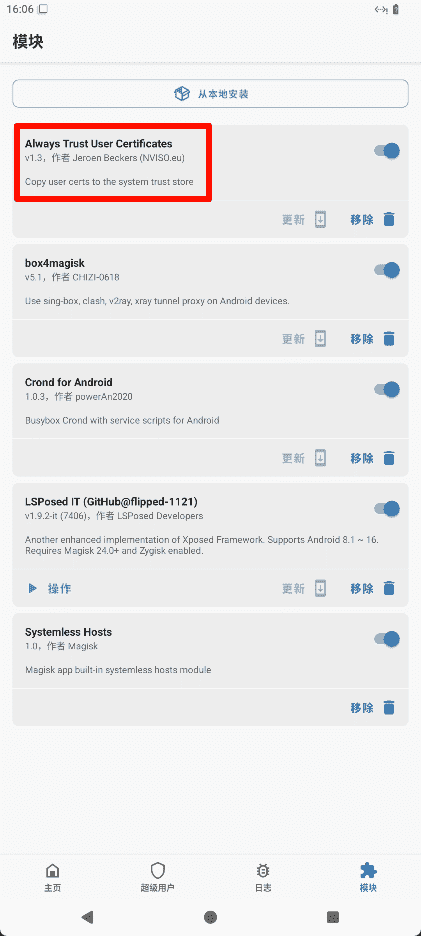
- AlwaysTrustUserCerts
- Systemless Hosts
Recommended order: install the user certificate first (see below), then enable AlwaysTrustUserCerts, and enable/adjust other modules as needed to improve Zygisk activation stability.
Root Authorization & the su Path
Symptoms
- Running
suin Termux correctly triggers the Magisk grant dialog. - MT Manager and Shizuku fail to obtain root.
logcatshows no obvious errors.
Resolution
- Explicitly set the
supath to/sbin/su. - Reference issue: https://github.com/ayasa520/redroid-script/issues/47#issuecomment-3242690759.
Notes
Different apps discover and invoke root differently. An explicit path avoids visibility issues caused by environment variables or mount strategies. If you customized PATH, SELinux, or overlayfs, evaluate their impact accordingly.
Troubleshooting Zygisk Not Activating
Symptom Magisk’s Zygisk keeps saying “restart required,” but remains inactive after reboot. Logs are sparse.
Reusable steps
- Install the user certificate in system settings first.
- Enable AlwaysTrustUserCerts via LSPosed/module manager.
- Reboot Redroid so Zygisk and related modules can initialize and mount properly.
If it still fails, try clearing module caches, check LSPosed version compatibility, and if necessary roll back to a stable Magisk/Redroid combination.
Deploy AutoJS for Automation
Use cases Execute automated clicks, heartbeats, or form-filling after specific apps launch.
Compliance Reminder The following is for your own environment and authorized testing only. Do not apply it to apps or services without explicit permission.
Prepare the AutoJS service
|
|
Compose setup
|
|
Start and view logs
|
|
Inject certificates and hosts
|
|
Then, in Settings → Security → Encryption & credentials (or Certificate management) → Install from storage, install the ca.crt user certificate. In JustTrustMe, check AutoJS / target apps in the scope. Reboot Redroid.
Resource Download
- Apps: MT Manager, Termux, AutoJsPro, JustTrustMe
- Modules: LSPosed, AlwaysTrustUserCerts, Systemless Hosts